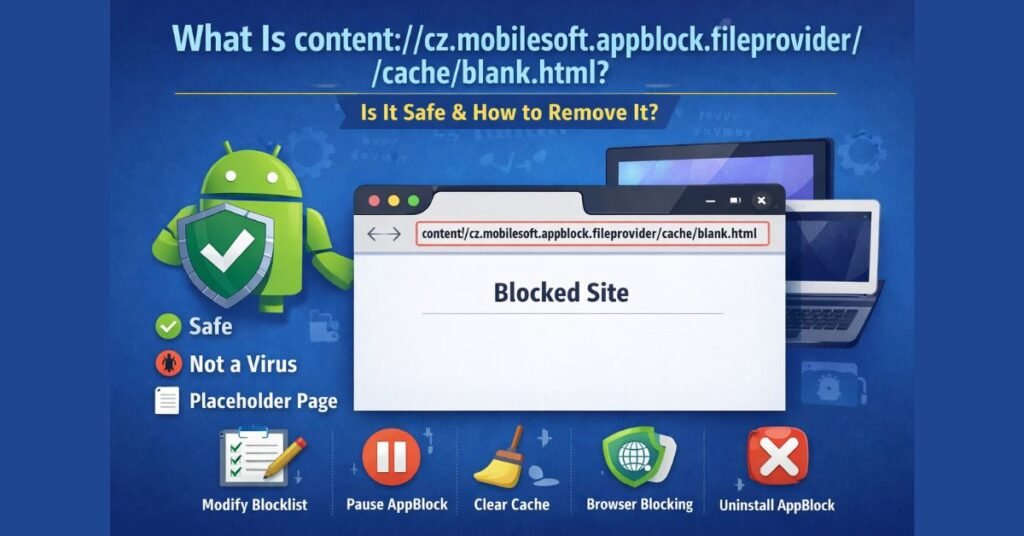
If you’ve noticed the string content://cz.mobilesoft.appblock.fileprovider/cache/blank.html appearing in your browser’s address bar, history, or system logs, you’re not alone — and there is no need to panic. This URI is completely normal, and understanding what it is takes just a few minutes. This guide explains exactly what this address means, why it appears on your device, whether it poses any security risk, and — most importantly — how to stop seeing it if you want to.
What Is content://cz.mobilesoft.appblock.fileprovider/cache/blank.html? (The Simple Explanation)
It Is a Placeholder Page Created by AppBlock
AppBlock is a popular productivity application developed by MobileSoft for Android devices, including smartphones, tablets, and Chromebooks running the Android subsystem. Its core purpose is to help users stay focused by blocking access to distracting websites and apps during set time periods or sessions.
When you (or someone else who manages your device) has configured AppBlock to block certain websites, AppBlock intercepts your browser’s attempt to load those sites and redirects the browser to an internal placeholder page instead. That placeholder page is blank.html — a tiny, locally cached HTML file stored inside AppBlock’s own private storage. The URI you see in the address bar is simply the internal Android address pointing to that file.
In plain terms: it is not a virus, not an error, and not a sign that anything has gone wrong. It is a feature working exactly as designed.
Why AppBlock Uses a Locally Cached Placeholder
You might wonder why AppBlock doesn’t just show a standard ‘blocked’ webpage hosted online. There are three good reasons it uses a local file instead:
- Speed: A locally cached file loads instantly with zero network latency, so blocked pages are replaced with no perceptible delay.
- Reliability: The block works even when the device is offline or has a poor connection — no server ping required.
- Security: Loading a local file avoids making any network request to the blocked domain whatsoever, ensuring the site is truly unreachable.
Deconstructing the URI: What Does Each Part Mean?
The full string content://cz.mobilesoft.appblock.fileprovider/cache/blank.html is an Android content URI. Each segment has a specific meaning within Android’s content provider system. The table below breaks it down:
| URI Segment | What It Means |
| content:// | The scheme. Tells Android this is a content URI, not a standard web address (http/https). Used for secure, permission-controlled data sharing between Android apps. |
| cz.mobilesoft.appblock | The authority. This is the unique package name of the AppBlock application by MobileSoft. Every Android app has a unique package name — this confirms the file belongs to AppBlock, not another app. |
| .fileprovider | The FileProvider suffix. FileProvider is an Android component that allows apps to securely share files with other apps (in this case, your browser) without exposing the raw filesystem path. |
| /cache/ | The path segment pointing to AppBlock’s internal cache directory, where it stores temporary files like this placeholder page. |
| blank.html | The actual file — a minimal, empty HTML document stored in AppBlock’s cache. Your browser renders it, resulting in a white/blank page. |
For developers: the FileProvider component is configured in AppBlock’s AndroidManifest.xml and paired with a file_paths.xml resource. A typical file_paths.xml entry enabling access to the cache directory looks like this:
<cache-path name=”cache” path=”.” />
This tells Android: ‘files in AppBlock’s cache directory can be shared via this FileProvider.’ Your browser is simply reading that shared file.
Why Does This URI Appear? Common Scenarios
In Your Browser’s Address Bar
This is the most common scenario. When you type a URL that AppBlock has on its blocklist, AppBlock intercepts the navigation and loads the local blank.html instead. The browser faithfully shows the address of the page it actually loaded — which is content://cz.mobilesoft.appblock.fileprovider/cache/blank.html.
In Your Browser’s History
Every time AppBlock blocks a navigation attempt, your browser logs the resulting load as a visit to the local URI. Over time, this can accumulate in your history. If you see multiple entries of this URI in your history, it simply means AppBlock has intercepted multiple browsing attempts during that session or day.
In System or Debug Logs
Developers or users checking Android system logs (via Logcat or similar tools) may see this URI referenced in log entries. This is expected behaviour — Android logs content provider activity, and AppBlock’s redirection generates these entries as a normal part of its operation.
Is content://cz.mobilesoft.appblock.fileprovider/cache/blank.html Safe?
| ✅ Safety Verdict: Completely Safe This URI is a legitimate, internal function of the AppBlock application by MobileSoft. It is not malware, not a virus, and not a surveillance tool. No sensitive data is being collected or transmitted when this page loads. |
It Is NOT a Virus or Malware
Malicious software typically operates silently and attempts to conceal itself. The AppBlock URI does the opposite — it is displayed openly in your browser’s address bar and is directly tied to a well-known, commercially available productivity app available on the Google Play Store. Antivirus and security tools do not flag this URI because there is nothing to flag.
What It Is and Is Not Doing
When this page loads, AppBlock is doing exactly one thing: displaying a blank local page to prevent you from accessing a blocked site. It is not tracking your general browsing, not recording keystrokes, not accessing other applications, and not connecting to any remote server. The content provider permission model means it can only serve the one file it was configured to share — blank.html.
How to Stop content://… From Appearing: Step-by-Step Methods
Depending on your goal, there are several approaches you can take. Use the method that best fits your situation:
Method 1: Modify AppBlock’s Website Blocklist (Keep the App, Unblock Specific Sites)
Best for: You want to keep AppBlock active but remove certain sites from the blocklist so they are no longer blocked.
- Open the AppBlock application on your device.
- Tap on your active profile or block session.
- Navigate to Web Filtering or Blocked Websites.
- Find the specific website you want to unblock and tap the delete or remove icon next to it.
- Save your changes. The site will now load normally in your browser.
Method 2: Temporarily Pause AppBlock (Quick, Reversible Fix)
Best for: You need brief access to blocked sites without changing your long-term settings.
- Pull down the notification shade from the top of your screen.
- Locate the AppBlock notification card in the notification panel.
- Tap Pause or Disable to suspend blocking temporarily.
- Re-enable AppBlock when you are ready to resume focused work.
Method 3: Clear AppBlock’s Cache (Remove the Temporary Files)
Best for: You want to clean up your browser history and remove cached data, but keep using AppBlock.
- Open your device Settings.
- Tap Apps (or Application Manager on some devices).
- Scroll to and tap AppBlock.
- Tap Storage & Cache.
- Tap Clear Cache.
Note: Clearing the cache will NOT delete your AppBlock rules, schedules, or profiles. Those are stored in the app’s data, not its cache.
Method 4: Use Your Browser’s Built-In Site Blocking (Alternative Approach)
Best for: You prefer to manage site restrictions directly in your browser rather than through a separate app.
- Open Chrome and tap the three-dot menu in the top-right corner.
- Go to Settings > Site Settings > Additional Content Settings > Blocked Sites (or similar, depending on your Chrome version).
- Add the sites you want to block.
With browser-level blocking in place, you may not need AppBlock’s web filtering at all, eliminating the URI from appearing entirely.
Method 5: Uninstall AppBlock (Permanent Solution)
Best for: You no longer want to use AppBlock on your device at all.
- Open device Settings.
- Tap Apps > AppBlock.
- Tap Uninstall and confirm.
Once uninstalled, AppBlock’s content provider is removed, and the URI will never appear again.
Comparison: Which Method Should You Choose?
Use this table to quickly compare your options:
| Method | Effort | Removes the URI? | Keeps AppBlock? | Best For |
| Modify Blocklist | Low | Yes (for unblocked sites) | Yes | Selectively unblocking sites |
| Pause AppBlock | Very Low | Temporarily | Yes | Quick, short-term access |
| Clear Cache | Low | Clears history only | Yes | Tidying up stored data |
| Browser Blocking | Medium | Yes | Optional | Prefer browser-native controls |
| Uninstall AppBlock | Low | Yes (permanently) | No | Done with AppBlock entirely |
Frequently Asked Questions
Q: Is content://cz.mobilesoft.appblock.fileprovider/cache/blank.html a virus?
No. It is a legitimate URI generated by the AppBlock productivity application to display a blank placeholder whenever a blocked website is accessed. It poses no security threat.
Q: Why does it keep appearing in my browsing history?
Each time AppBlock intercepts a navigation to a blocked site, your browser logs the resulting local file load as a history entry. The more often you (or an app) attempts to visit blocked sites, the more this URI accumulates in your history. Clearing your browser history removes these entries.
Q: Can I manually delete the blank.html file?
There is no practical need to do so. Android’s app storage sandbox means you cannot browse to AppBlock’s cache directory directly without root access. Clearing AppBlock’s cache via Settings (Method 3 above) is the equivalent action and does the same thing safely.
Q: Does AppBlock spy on my browsing activity?
No. AppBlock only checks whether a website you are trying to visit is on your configured blocklist. It does not monitor general browsing, record websites you visit that are not on the list, or transmit browsing data to external servers. The blank.html content provider has access only to that one specific file.
Q: Will clearing AppBlock’s cache delete my block rules and schedules?
No. Your rules, profiles, and schedules are stored in AppBlock’s app data, which is separate from its cache. Clearing the cache only removes temporary files like blank.html — your configuration remains intact.
Q: I am a developer. How do I implement a similar FileProvider in my own app?
To use FileProvider for secure file sharing in your Android app, declare it in your AndroidManifest.xml and define a file_paths.xml resource in your res/xml/ directory specifying which directories can be shared. You then generate a content URI using FileProvider.getUriForFile() and grant the receiving app temporary read permission via Intent.FLAG_GRANT_READ_URI_PERMISSION before sharing the URI.
Related Resources
If you found this guide helpful, you may also want to explore the following topics:
- How to Clear Cache and Data on Android — A step-by-step guide for all major Android versions.
- Best Android Productivity Apps to Stay Focused — Alternatives and complements to AppBlock.
- Understanding Android Content Providers — A deeper dive into how apps share data securely on Android.
- Managing App Permissions on Android — How to review and control what each app can access on your device.
AppBlock on Google Play Store: search ‘AppBlock – Stay Focused’ on play.google.com for the official listing, version history, and user reviews.